
Quick Summary
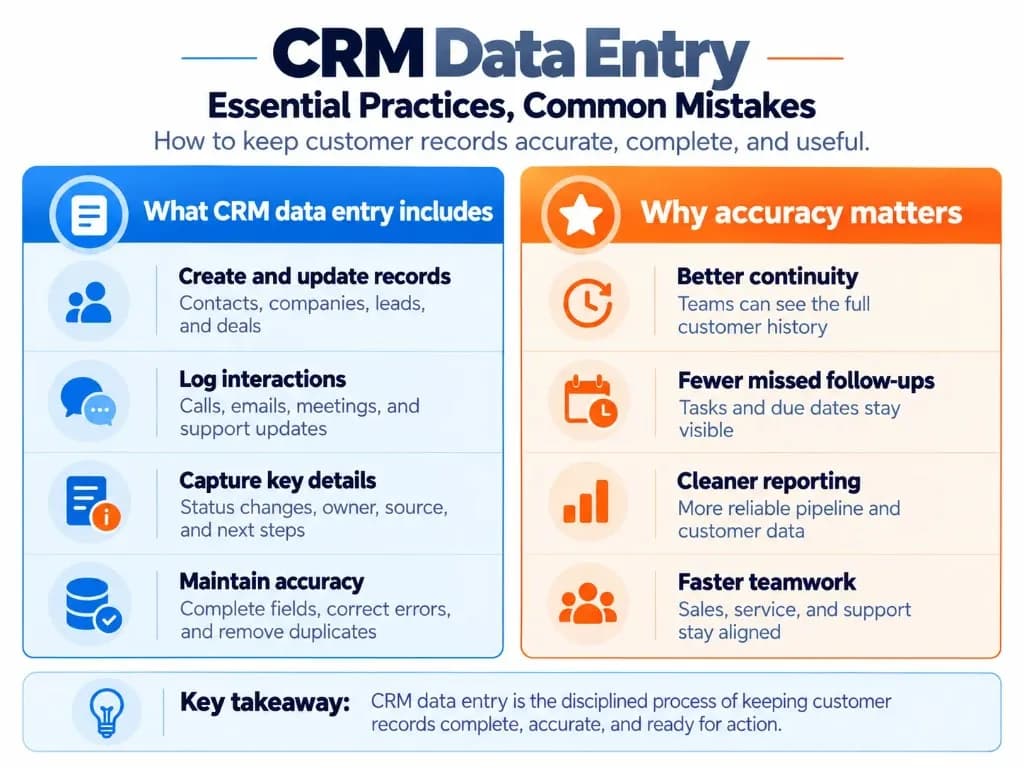
- CRM data entry involves more than adding contacts: It includes creating and updating customer records, entering contact and company details, recording interactions, tracking lead or deal information, and assigning follow-ups. Accurate entries keep customer information organized, reliable, and accessible—the foundation of strong CRM data management and everyday customer relationship management.
- Follow a consistent CRM data entry process: Collect and verify customer information, search for existing records, enter details into the correct fields, and link related contacts, companies, and deals. Record interactions, assign next actions, and check the saved information for errors so your CRM database stays usable for sales and service teams.
- Standardization and timely updates improve accuracy: Use consistent field formats, appropriate required fields, duplicate detection, and clear record ownership. Update important information immediately after customer interactions whenever practical, and regularly review records for missing details, outdated values, and inconsistencies—habits that also support CRM system proficiency.
- Common mistakes can compromise customer records: Duplicate contacts, incorrect information, inconsistent formatting, vague CRM notes, missing follow-up tasks, and wrong record associations create confusion. Prevent these problems by verifying sources, checking existing records, documenting clear next steps, and reviewing changes before saving.
- Automation reduces repetitive work but still requires verification: CRM forms, imports, and integrations can automatically capture customer information and activities—especially after you learn how to connect a CRM to forms and other apps. However, incorrect field mapping, duplicate creation, and unintended updates can introduce errors. Automate predictable tasks while retaining human review for uncertain or consequential changes.
What Information Should You Enter into a CRM?
The information you enter depends on the customer relationship and the work your team performs. Most CRM systems organize it into a few common categories that support contact management and lead management alike.
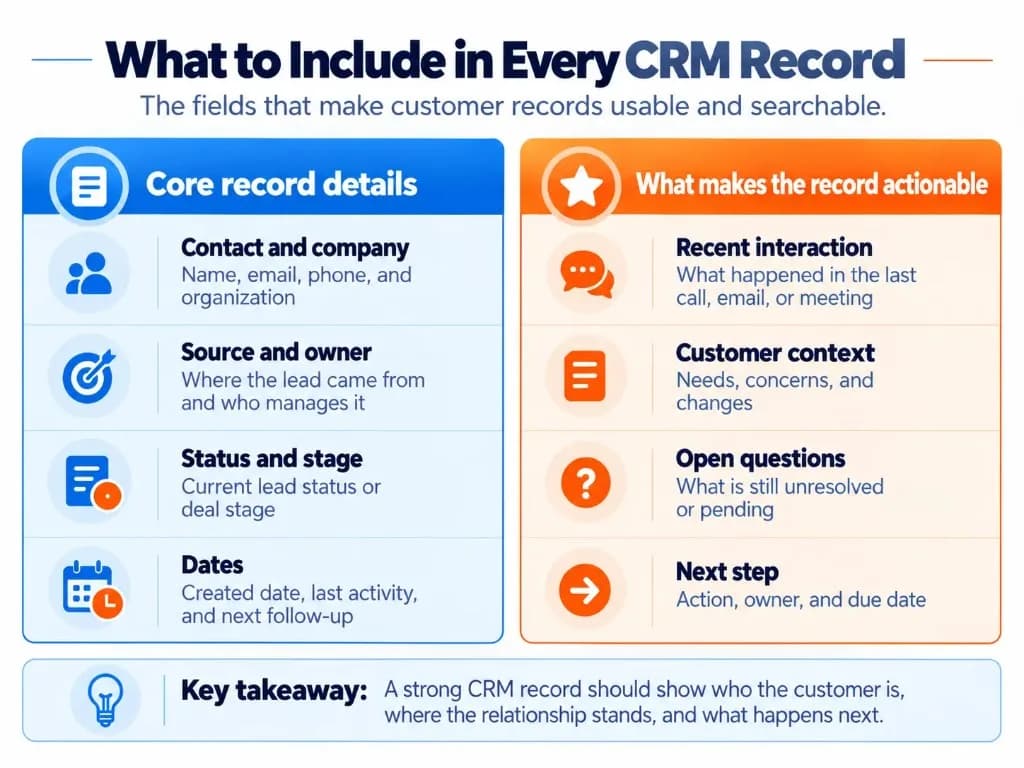
| Data category | Examples | Why it matters |
|---|---|---|
| Contact information | Name, email address, phone number, job title | Identifies and helps you contact the right person |
| Company details | Organization name, website, industry | Connects contacts to the organizations they represent |
| Lead information | Lead source, status, assigned owner | Shows where an inquiry came from and who handles it |
| Deal information | Opportunity value, deal stage, expected close date | Tracks an active sales opportunity when applicable |
Customer interactions
Calls, emails, meetings, conversation notes
Preserves the history of customer communication
Follow-up activities
Next action, due date, responsible person
Makes sure commitments are acted upon
Not every record needs every field. For example, someone submitting an initial inquiry may have no confirmed deal value or expected closing date—common in early CRM for digital marketing capture flows.
Enter information that is known and useful. Leave genuinely unknown optional fields blank rather than guessing. Required fields should reflect what your team actually needs to complete its work during CRM implementation, not every possible attribute.
How to Enter CRM Data? Step-by-Step Process
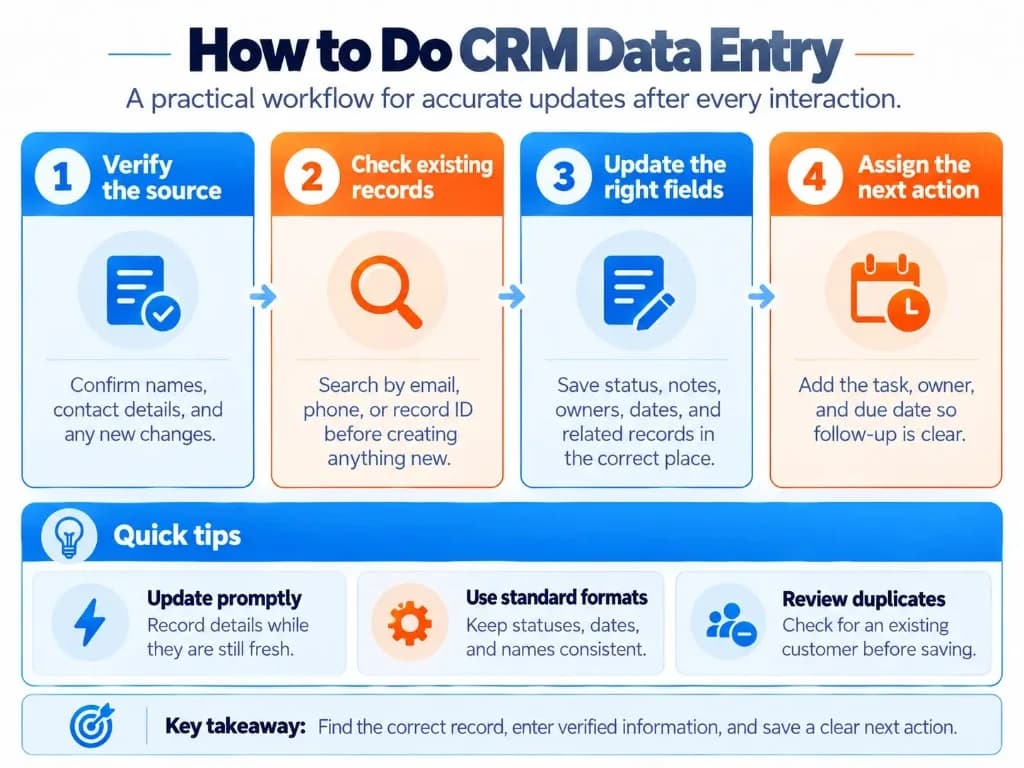
A reliable CRM data entry process starts with identifying the correct record and ends with verifying the saved information. The steps below work for B2B CRM teams, CRM for inside sales desks, and service workflows that share the same CRM database.
1. Collect and verify the source information
Gather the information from the appropriate source, such as a customer inquiry, sales call, email, meeting, website form, or approved contact list.
Check for obvious errors before entering it:
- Is the email address spelled correctly?
- Does the phone number include the correct country or area code?
- Is the person's name associated with the right company?
- Is the information current and supported by the source?
Do not fill missing information with assumptions. If two sources disagree, verify which is correct before replacing an existing value—especially when sales automation or marketing automation may later overwrite fields from another system.
2. Search for an existing CRM record
Before selecting Create Contact or Add Lead, search the CRM using an email address, phone number, name, or another reliable identifier.
If a matching record exists, determine whether it needs updating. If no reliable match exists, create a new record.
A matching name alone does not prove two contacts are the same person. Likewise, two people who work at the same company should not automatically be merged.
This lookup-first approach reduces duplicate records and preserves existing activity history—core CRM data management practice that protects reporting and CRM metrics.
3. Select the correct record type and enter the details
Add information to the appropriate CRM record.
A person's name and email belong in a contact or lead record, depending on the CRM's structure. Company details belong in an account or company record. An active sales opportunity may need a separate deal record.
Use the correct field for each value:
- Put email addresses in email fields, not general notes.
- Choose an existing lead-status option rather than creating a variation in free text.
- Enter dates in the format required by the system.
- Link contacts to the correct company and related deal where applicable.
Follow your team's naming conventions and required-field rules. Avoid adding the same information to multiple unrelated fields. Cloud-based CRM products often expose these fields through shared templates that keep teams aligned.
4. Record the customer interaction
When a customer calls, replies, attends a meeting, or requests information, record the relevant interaction against the correct contact or deal.
A useful activity entry identifies what happened, what the customer needs, and the outcome—the same clarity expected in strong CRM notes.
For example:
Vague entry: "Called customer. Interested."
Useful entry: "Discussed pricing for 20 users. Customer requested a product demo and asked for available times by email."
The second entry provides enough context for another team member to continue the conversation without reconstructing the call from memory.
5. Add the next action
If an interaction creates a commitment, record it as a follow-up task when the CRM supports tasks.
Specify:
- What needs to happen
- Who is responsible
- When it is due
For example, "Email available demo times by Thursday — assigned to Maya."
A conversation note records what happened. A follow-up task identifies what must happen next. Both may be necessary for operational CRM workflows that hand work between sales and support.
6. Validate and save the entry
Before saving, check that the information matches the source, required fields are complete, and related records are correctly linked.
Pay particular attention to email addresses, phone numbers, record ownership, deal stages, and task dates.
If the CRM flags a possible duplicate, review the existing records rather than automatically dismissing the warning.
After saving, reopen or review the record to confirm the changes were retained correctly—basic CRM system proficiency that prevents silent save failures.
7. Update the record when information changes
CRM data entry continues after a record is created.
Update contact details when a customer provides a new number or email address. Record new conversations, change statuses when the relevant criteria are met, and close completed tasks.
Whenever practical, make updates immediately after an interaction while its details are still clear.
If information cannot be verified, flag it for follow-up instead of silently replacing an existing value. Teams comparing CRM vs CXM approaches still need this discipline so experience systems inherit accurate relationship history.
CRM Data Entry Example
Consider a fictional prospect, Jordan Lee, who submits a website inquiry requesting information about a software subscription—typical inbound lead management after a form is connected through CRM integration.
The CRM user first searches for Jordan's email address to determine whether an existing contact record is available. After confirming the correct record, the user enters the following information.
| CRM field | Example entry |
|---|---|
| Contact name | Jordan Lee |
| jordan.lee@example.com | |
| Company | Northstar Services |
| Job title | Operations Manager |
| Lead source | Website inquiry |
| Lead status | Contacted |
| Record owner | Maya |
| Activity note | Discussed pricing for 20 users; prospect requested a demonstration |
| Next task | Send available demo times by the next business day |
| Task owner | Maya |
All names and details in this example are fictional.
The record now identifies the prospect, documents the conversation, and gives the responsible person a clear next action.
Notice that no phone number or deal value has been invented. Those fields can remain empty until the information becomes available.
The follow-up is also stored as a task rather than being left only in a note—exactly how useful CRM notes and tasks should complement each other.
CRM Data Entry Best Practices
Use consistent field formats
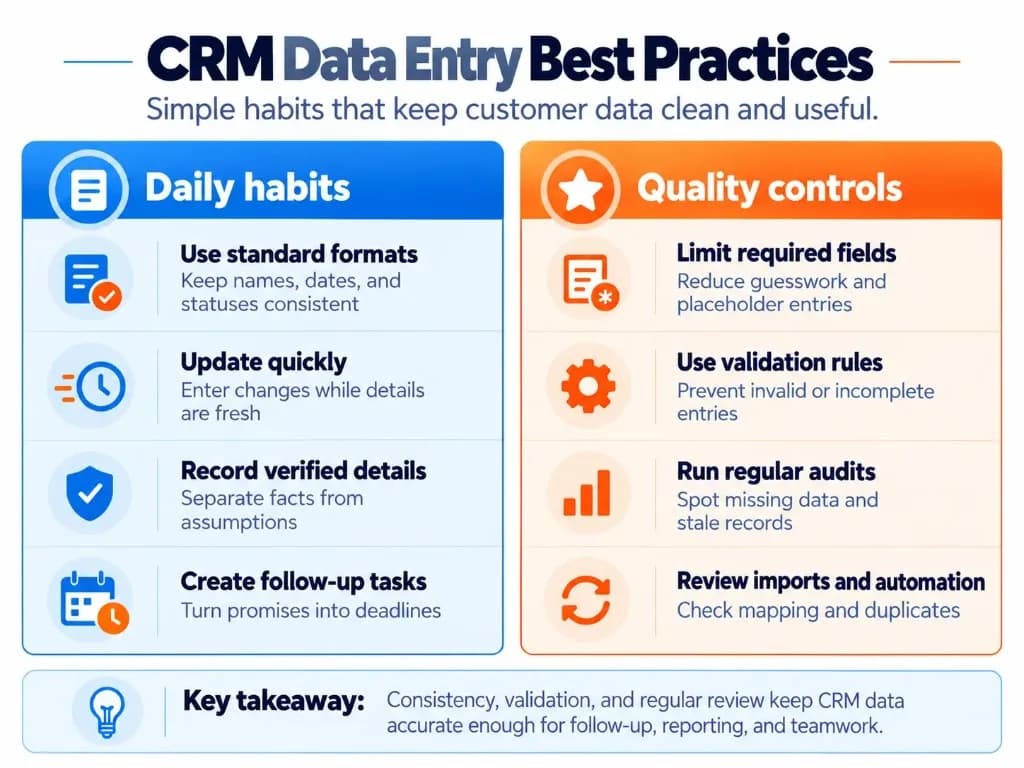
Agree on how names, phone numbers, dates, company names, and statuses should be entered.
Use standardized selection fields where practical. For example, a lead-status field with defined choices prevents employees from entering different variations of the same status—especially important when CRM for digital marketing segments rely on those values.
Make essential fields required
Require information that is genuinely necessary for a usable record, such as a contact identifier, source, or responsible owner where appropriate.
Avoid making every field mandatory. Excessive requirements can encourage users to enter placeholders or guessed information simply to save a record. Calibrate required fields during CRM implementation with the people who enter data daily.
Check for duplicates before creating records
Search existing contacts and companies before adding new ones.
Duplicate-detection tools can help, but their behavior depends on the CRM and its configuration. A system warning is a reason to investigate, not automatic proof that two records should be merged. Protecting the CRM database from duplicates keeps CRM metrics and pipeline reports trustworthy.
Assign responsibility for updates
Make it clear who is responsible for maintaining each record.
For example, the assigned sales representative may update a prospect's status and interactions, while a designated administrator handles complex duplicate merges or disputed data.
This prevents several people from making contradictory changes without coordination—and reduces the need for reactive custom CRM development just to paper over ownership gaps.
Record interactions promptly
Capture important details soon after calls, meetings, or customer replies.
Prioritize the customer's request, the outcome, and any promised action. Unnecessary transcripts or lengthy descriptions usually make records harder to scan; structured CRM notes beat walls of text.
Verify imported and automated data
If information arrives through forms, spreadsheets, integrations, or automation, check that fields are mapped correctly and records are associated with the intended customer.
For bulk imports, test a small sample before processing the full file. Verify whether existing records will be updated or new records created—especially after you learn how to connect a CRM connector or run marketing automation that writes back to contacts.
Protect customer information
Store only information your organization legitimately needs. Avoid putting passwords, payment card information, or unnecessary sensitive personal details into ordinary CRM notes.
Use appropriate access permissions and follow your organization's privacy and retention requirements. Cloud-based CRM admins should review role permissions whenever teams grow.
Review records regularly
Periodically check for duplicate contacts, missing essential fields, outdated information, unresolved errors, and records without clear ownership.
Prioritize active records and recurring problems instead of repeatedly reviewing every field in every contact. Regular reviews are part of mature CRM data management and support long-term business growth. Nonprofit teams using constituent CRM still need the same entry discipline for donors and participants.
Common CRM Data Entry Mistakes and How to Avoid Them
Most CRM data entry problems come from a small set of preventable errors that undermine contact management and team trust in the system.
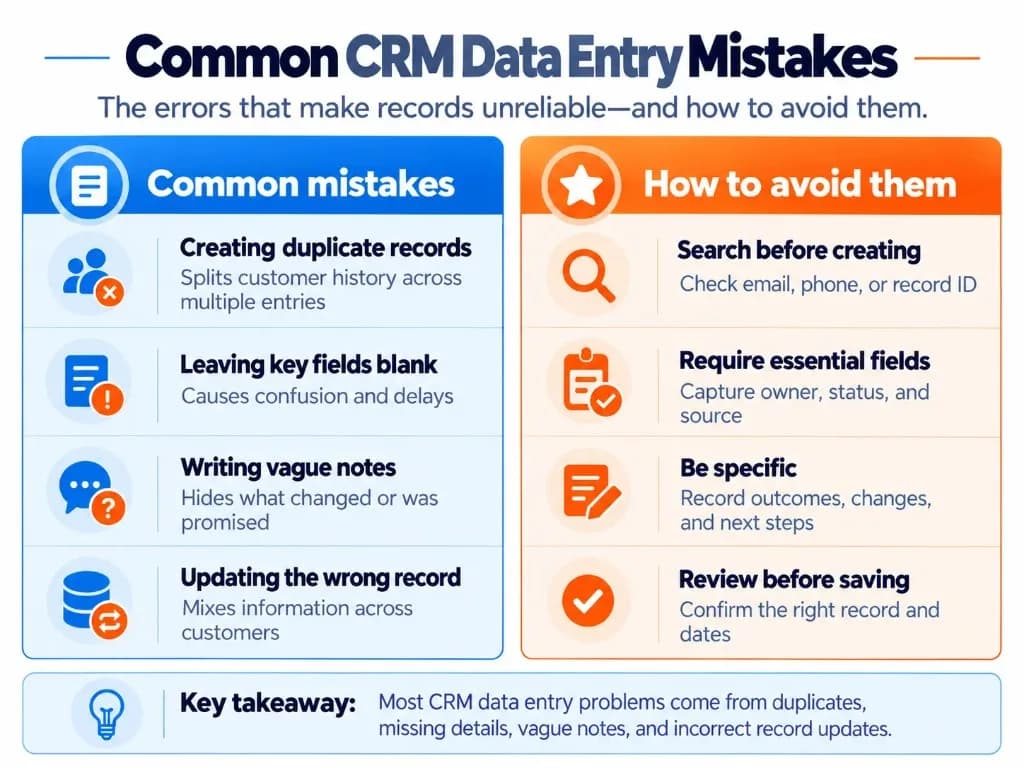
| Common mistake | Why it causes problems | How to avoid or fix it |
|---|---|---|
| Creating duplicate records | Customer history becomes fragmented across multiple entries | Search using reliable identifiers before creating a record |
| Entering incorrect contact details | Follow-ups may fail or reach the wrong person | Compare critical details with the original source |
| Leaving essential fields incomplete | Other team members lack the information needed to act | Define a minimum required field set; flag unknown values instead of guessing |
| Using inconsistent formats | Records become harder to filter, search, and maintain | Use standard formats and controlled status options |
| Linking information to the wrong contact or company | Activity history and deal context become misleading | Verify related records before saving an association |
| Writing vague interaction notes | Colleagues cannot understand what happened | Record the relevant request, outcome, and next action |
| Forgetting follow-up tasks | Customer commitments are not clearly assigned or scheduled | Create a task with an owner and due date |
| Overwriting accurate information | Useful details are lost when unverified data replaces them | Resolve conflicting values against reliable sources |
| Importing data into the wrong fields | Multiple records can become inaccurate at once | Test field mappings and update behavior before a bulk import |
Be especially careful when merging duplicates. Two similar-looking records may contain different activities, deals, owners, or related information. Review those relationships before merging or deleting anything, and use the CRM's supported merge process.
A duplicate should be resolved only after confirming that the records represent the same person or organization. Poor merges are among the hardest CRM data management problems to reverse.
Manual vs. Automated CRM Data Entry
CRM data can be entered manually or captured through supported automation.
Manual entry is useful when information requires interpretation, such as summarizing a conversation, confirming an ambiguous contact, or deciding whether a sales status should change—judgment that sales automation alone cannot replace.
Automated entry can reduce repetitive tasks such as capturing website form submissions, importing contact fields, or recording supported communication activities after CRM integration is configured.
However, automated data is not automatically accurate.
For example, a form submission might update an existing contact based on a matching email address, while an imported row without a reliable identifier could create a new record. The exact behavior depends on the CRM, its matching rules, and the entry method.
Use automation for repeatable, well-defined tasks. Keep verification and exception handling in place for duplicates, conflicting information, incorrect associations, and uncertain updates. When standard tools fall short, CRM development or custom CRM development can encode the rules your process needs—without removing human review for consequential changes.
CRM Data Entry Checklist
Before finishing an entry, verify that:
- You selected the correct existing record or confirmed a new record is needed.
- Contact information matches a reliable source.
- Required fields are complete without invented values.
- Contacts, companies, and deals are linked correctly.
- The latest interaction and its outcome are recorded.
- Any promised follow-up has an owner and due date.
- Duplicate warnings and conflicting information have been reviewed.
- Changes were saved successfully.
Effective CRM data entry leaves each record accurate, understandable, and ready for the next person who needs to use it—whether they work pipeline stages, support tickets, or CRM metrics dashboards.
Frequently Asked Questions
How often should CRM data be updated?
CRM records should be updated after meaningful customer interactions or whenever important information changes. Logging calls, deal updates, and follow-up commitments promptly helps prevent forgotten details. Teams can also review incomplete or outdated records regularly, but there is no universal requirement to update every record daily—pair cadence with your CRM implementation playbook and ownership rules.
Do I need to record every call and email in a CRM?
Not every routine interaction needs a detailed manual entry. Prioritize conversations that change customer requirements, deal status, commitments, or next steps. If your CRM automatically logs emails and calls, add CRM notes only when necessary to explain important context or outcomes that the activity log does not capture.
How can I reduce the time spent on CRM data entry?
Limit mandatory fields to essential information, use standardized templates, and automate repetitive tasks such as contact capture and activity logging. Recording brief notes immediately after conversations also reduces the time spent reconstructing details later. Review automated entries to avoid creating additional correction work—especially when marketing automation writes campaign fields back into the CRM database.
Why do CRM forms create duplicate contacts or overwrite existing information?
CRM forms may create duplicates when they cannot match a submission to an existing record, or update an existing record when a matching identifier is found. For example, HubSpot uses email addresses to help identify existing contacts. Review form settings, matching rules, and field-update behavior when you learn how to connect a CRM for inbound forms—the same checks covered in CRM integration troubleshooting.
How do I import customer data into a CRM without creating duplicates?
Include a reliable identifier, such as an existing record ID or another field supported by your CRM's matching rules. Map spreadsheet columns to the correct CRM fields and test a small import before processing the complete file. Verify whether the import will update existing records, create new ones, or perform both actions—standard CRM data management discipline before any bulk load.
Which CRM fields should be mandatory?
Mandatory fields should include only the information required to identify a record and complete the relevant workflow. Depending on the process, these may include contact information, lead source, assigned owner, or status. Make additional fields required when they become necessary rather than forcing users to enter placeholder or unverified values. Teams practicing CRM system proficiency refine this list as workflows mature.
Should I trust AI-generated CRM entries without reviewing them?
AI can help extract customer details, summarize conversations, and suggest CRM updates, but important changes should be verified before saving. Automated systems can misinterpret conversations, assign incorrect statuses, or associate information with the wrong record. Human review is especially valuable for uncertain information, customer commitments, and consequential record changes that affect customer relationship management quality and downstream CRM metrics.