
Quick Summary
- Connecting a CRM links customer data across business applications: CRM integrations connect your CRM with tools such as email platforms, website forms, ecommerce systems, and accounting software. These connections automate data transfers, reduce manual entry, and help keep customer records consistent—core CRM data management work that protects customer relationship management quality.
- Choose the right CRM integration method: Native integrations offer straightforward setup, no-code platforms like Zapier connect applications through automated workflows, and custom APIs provide greater flexibility. The best option depends on application compatibility, technical requirements, synchronization needs, and available resources—often the same tradeoff teams weigh during CRM implementation.
- Follow a structured connection process: Identify the applications and data to connect, verify permissions, authorize access, configure synchronization direction, map fields, and establish record-matching rules. Test the integration with sample records before activating it to prevent incorrect updates or missing information.
- Prevent duplicates and unintended data overwrites: One-way synchronization sends information in one direction, while two-way synchronization allows updates between systems. Define which application controls each field and how existing records are matched to avoid duplicate contacts, conflicting updates, and broken customer relationships in the CRM database.
- A successful connection does not guarantee accurate synchronization: An integration can show as connected while records fail to transfer, fields update incorrectly, or leads go missing. Verify new and existing records, review synchronization errors, and monitor connection health to keep customer information reliable—especially when CRM metrics depend on complete activity history.
What Does It Mean to Connect a CRM?
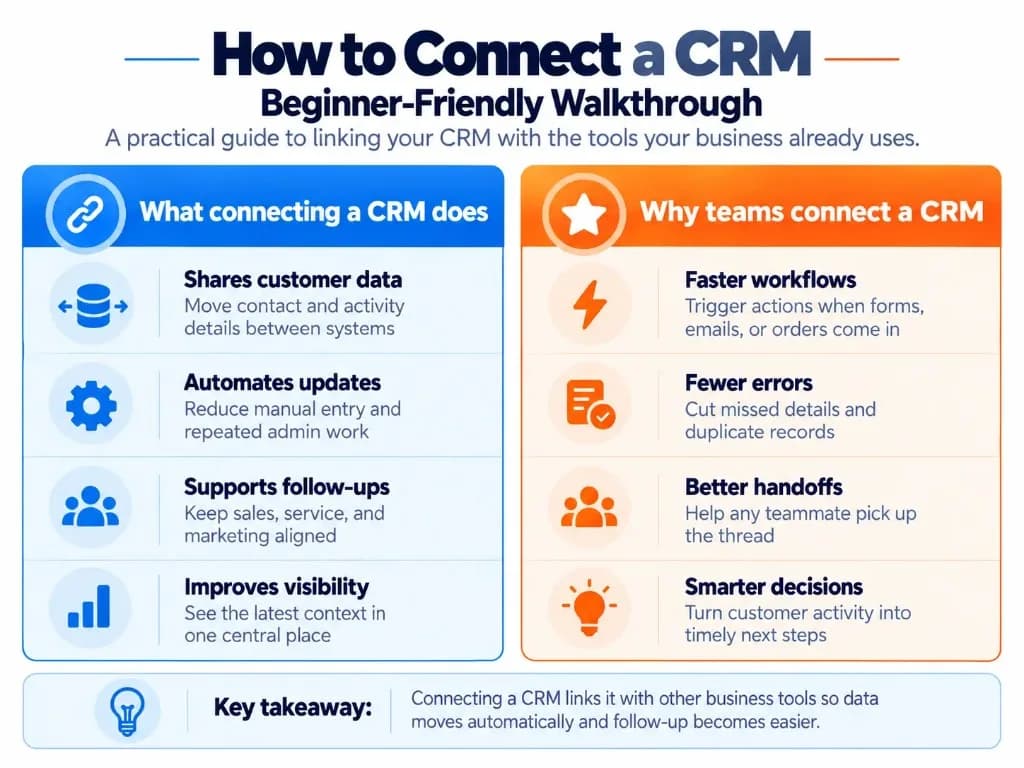
Connecting a customer relationship management (CRM) system means linking it with another business application so customer information or workflow events can move between them automatically.
For example, connecting a website contact form to a CRM allows new enquiries to create or update contact records without someone manually entering the details—practical lead management for busy sales teams.
Other common CRM connections include:
- Email and calendar: Gmail or Outlook activity associated with customer records.
- Marketing tools: New leads and selected campaign interactions transferred to the CRM.
- Ecommerce platforms: Customer and order information shared with the CRM.
- Accounting software: Invoice or payment status made available to sales teams.
- Customer support tools: Support tickets linked to existing customer records.
The data exchanged depends on what the specific integration supports. Some connections only send information into the CRM, while others allow updates in both directions. Cloud-based CRM setups often make these connectors easier to enable across teams.
Three Ways to Connect a CRM
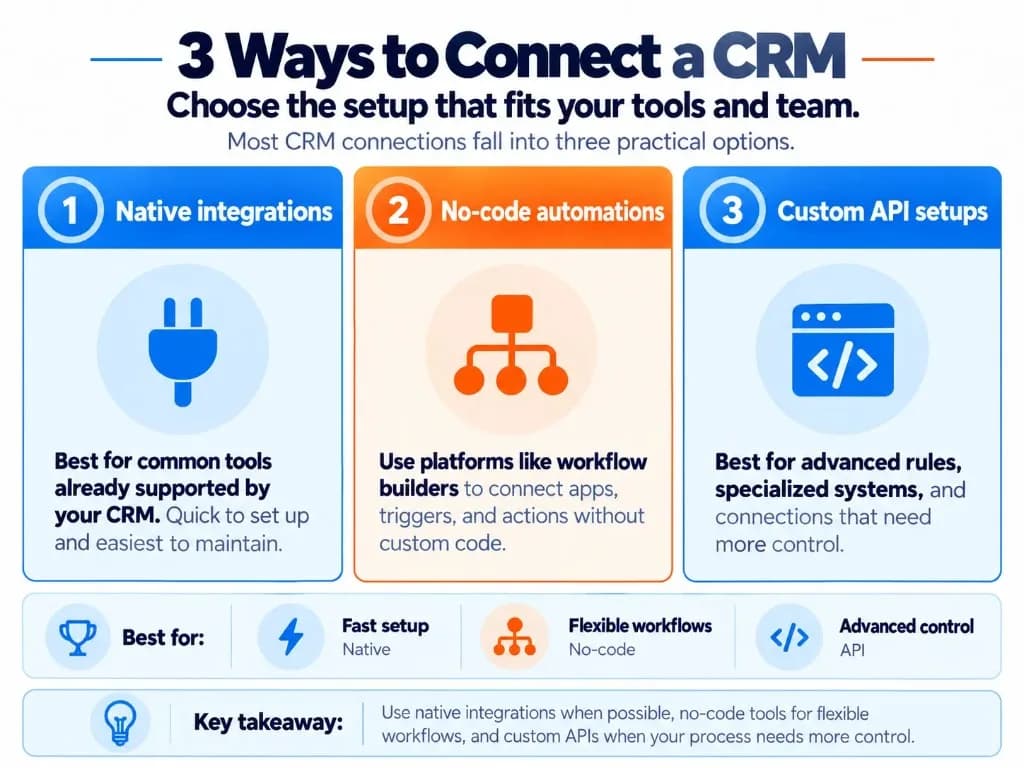
There are three main approaches to CRM integration. You usually do not need custom development when your CRM already supports the application you want to connect.
Method
Best for
Main limitation
Native integration
Common apps with existing CRM connectors
May support limited objects, fields, or sync directions
No-code integration platform
Connecting different tools and automating specific workflows
May require a paid plan and ongoing automation management
Custom API integration
Specialized systems, complex business rules, and unsupported connections
Requires technical expertise and maintenance
Native CRM Integrations
Native integrations are ready-made connections offered by a CRM provider or another software vendor.
Platforms such as HubSpot, Salesforce, and Zoho CRM have integration marketplaces or supported connections for compatible applications.
To use a native integration, you generally:
- Open your CRM's integrations or app marketplace.
- Search for the application you want to connect.
- Select the relevant connector.
- Sign in to the connected application.
- Authorize access and configure the available settings.
Choose native integrations first when they support the exact records and actions you need. However, confirm what the connector actually does: installing an app does not guarantee that every customer field or activity will synchronize. CRM system proficiency includes knowing which objects a connector can really update.
No-Code Integration Platforms
If a suitable native connector is unavailable or lacks a necessary action, tools such as Zapier, Make, and n8n can connect compatible applications through automated workflows.
These workflows usually contain two elements:
- Trigger: An event that starts the automation, such as a new website form submission.
- Action: An operation performed afterward, such as creating or updating a CRM contact.
- For example, a workflow can receive a lead from a supported form application, look for an existing CRM contact, and create a new record only when necessary.
No-code tools are useful when you need conditional actions or several applications to participate in one workflow—useful for CRM for digital marketing campaigns that pass leads into sales.
Check supported triggers, actions, permissions, task limits, and pricing before choosing a platform. Sales automation and marketing automation sequences should only run after matching rules prevent duplicate records.
Custom API Integrations
An application programming interface (API) lets software exchange information through defined requests and responses.
Custom integrations are useful when an existing connector cannot support your data structure, workflow rules, or application.
A developer typically needs to:
- Obtain the relevant API documentation and access permissions.
- Configure supported authentication, such as OAuth 2.0.
- Map data between the systems.
- Implement create, read, or update operations.
- Handle errors, rate limits, and retries.
- Test and monitor the integration.
Custom connections offer greater control but also introduce development and maintenance responsibilities. When off-the-shelf options fall short, custom CRM development or deeper CRM development work may be required.
For most routine CRM connections, a supported native or no-code option is a more practical starting point—especially for B2B CRM teams connecting forms, calendars, and pipeline tools first.
How to Connect Your CRM: Step by Step?
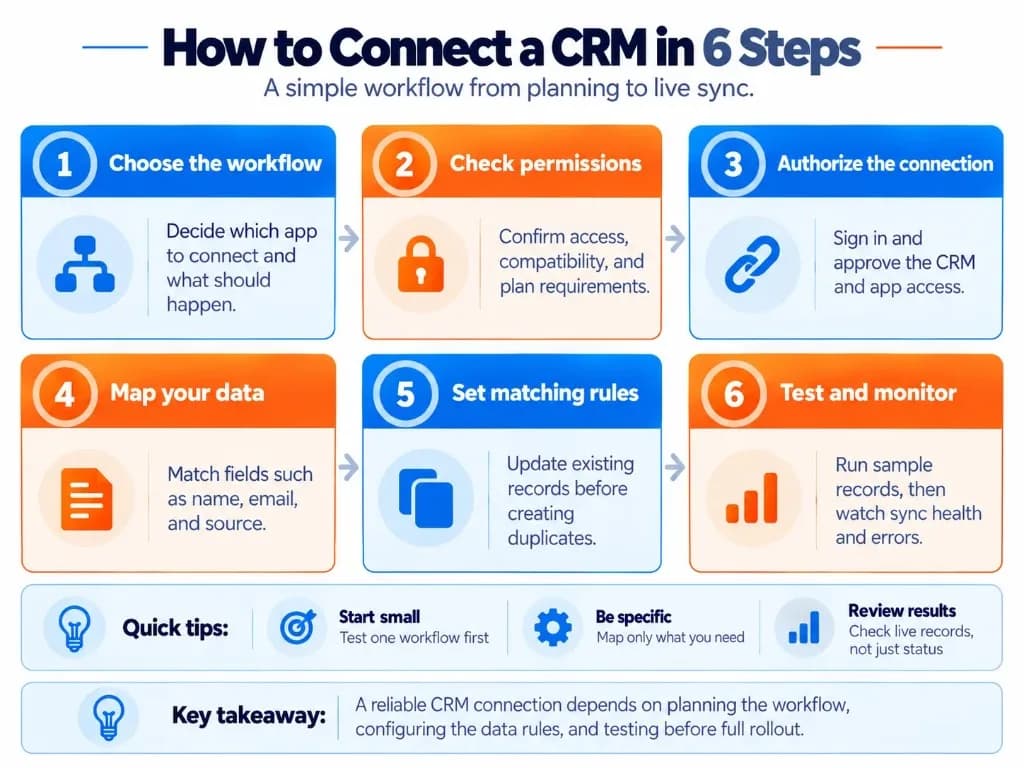
The process below works as a general checklist for connecting an existing CRM to another system. Exact menus and options vary by software.
Choose the Application and Define the Workflow
Start by identifying the application you want to connect and what should happen when the integration runs.
For example:
Source: Website contact form
Destination: CRM contacts
Trigger: New form submission
Action: Create or update the matching contact
Decide which information needs to transfer, whether updates should move in one direction or both, and which system should control each field.
Starting with one clearly defined workflow makes the connection easier to configure and test. CRM for inside sales teams often begin with inbound form-to-contact sync before adding more complex CRM integrations.
Check Compatibility, Permissions, and Requirements
Before connecting accounts, confirm that both platforms support the intended workflow.
Check:
- Whether a native connector exists or another integration method is needed.
- Whether your subscription includes the required integration features.
- Whether your account has permission to connect external applications.
- Whether the connector supports the records and fields you want to transfer.
- Whether existing records need to be backed up before enabling bulk synchronization.
Permissions vary between CRM platforms.
For example, HubSpot requires Super Admin or App Marketplace permissions to connect apps through its data sync setup. Salesforce connections through Zapier have additional account, edition, authorization, and plan requirements.
Review the vendor's current instructions before granting access.
Authorize the CRM Connection
Open your CRM's integrations page or the integration platform you selected.
For a supported HubSpot marketplace app, the process generally looks like this:
- Sign in to HubSpot.
- Open the HubSpot Marketplace.
- Search for the application you want to connect.
- Open its listing and select Install.
- Sign in to the external application's account.
- Review the requested permissions and approve the connection.
For a supported Zapier connection, open Apps, select Add connection, choose your CRM, and complete the authorization process.
Where supported, OAuth allows an application to request specific access without you directly sharing your account password with the integration provider.
Review permissions carefully. Avoid granting unnecessarily broad access, and keep API credentials or integration secrets out of public files and shared documents.
At this point, the accounts may be connected, but the required data transfer might not yet be active.
Configure Sync Direction and Field Mapping
Next, configure which records and properties should move between the systems.
Choose the synchronization direction:
- One-way sync: Updates move from one application to the other.
- Two-way sync: Supported updates can move in both directions.
A website lead form usually needs a one-way flow into the CRM. Two-way synchronization is more appropriate when both systems legitimately update the same contact details, such as email and calendar contact data.
Map only the fields you need for the workflow. Typical examples include name, email, phone, company, lead source, and message content.
Define which application is the source of truth for each mapped field. Without that rule, later updates can overwrite accurate CRM information with older values from another tool—especially risky for CRM in finance and CRM for insurance agents teams handling regulated contact data.
Set Matching Rules Before Creating New Records
Configure how the integration identifies an existing contact before creating a new one.
A common approach is to search by email address or another unique identifier, update the matching record when found, and create a new contact only when no match exists.
Without matching rules, every form submission or order event can generate duplicate contacts and split conversation history. Contact management and CRM notes then become harder to trust because context is scattered across multiple records.
Where companies, deals, or tickets are involved, check whether associations require separate mapping so contacts do not sync as orphaned records.
Test, Activate, and Monitor the Connection
Test with a small set of sample records before enabling the integration for all traffic.
Verify that:
- New records create correctly in the CRM.
- Existing records update instead of duplicating.
- Required fields populate with the expected values.
- Unrelated fields are not overwritten.
- Errors appear in the integration log when a test is designed to fail.
After go-live, monitor sync health, failed tasks, and permission expirations. A green "connected" status is not the same as confirmed record accuracy—something CRM for call centers and CRM for service businesses learn quickly when tickets arrive without contact history.
CRM Integration Example: Connecting a Website Form to a CRM
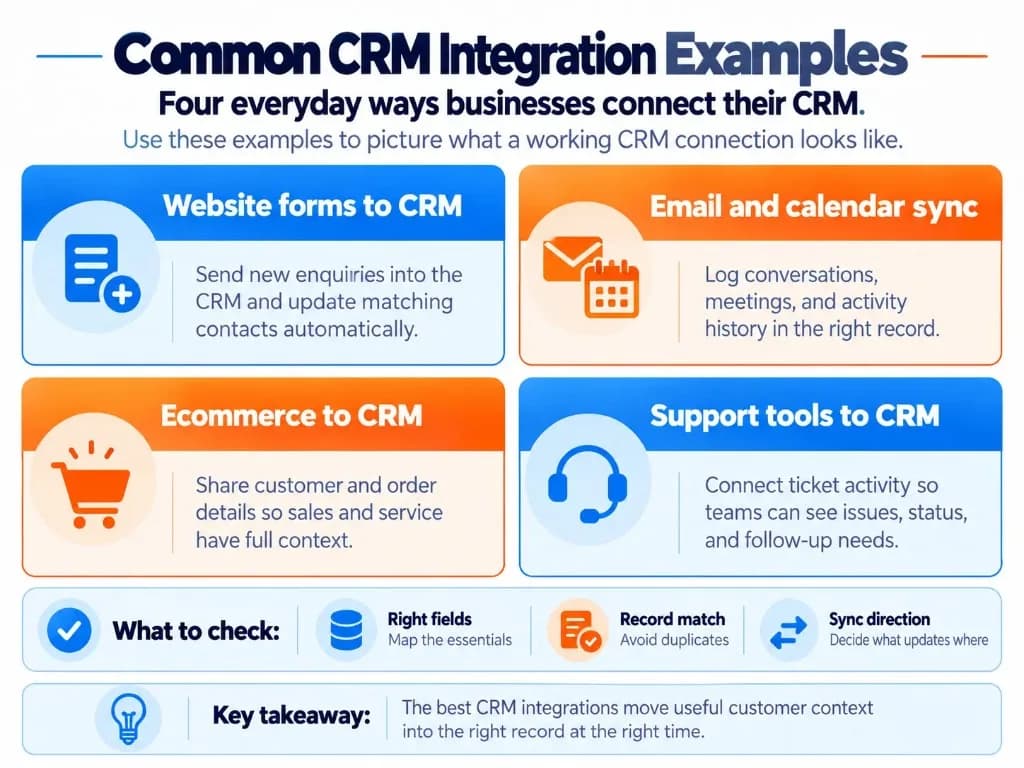
A website form connection is one of the most common CRM integrations because it turns enquiries into usable contact records.
A typical one-way workflow looks like this:
- A visitor submits the contact form.
- The integration receives the submission event.
- The workflow searches the CRM for a matching email address.
- If a match exists, the contact is updated with the new enquiry details.
- If no match exists, a new contact or lead is created.
- An optional task or notification alerts the sales owner.
What to map carefully:
- Contact name and email as required identifiers.
- Phone and company when available.
- Lead source or campaign fields for later CRM analytics.
- Message or enquiry details in a notes or description field.
- Consent or marketing preference fields when your process requires them.
Ecommerce CRM and CRM for retail programs often extend the same pattern to order events, while CRM for real estate and CRM for manufacturing teams may map property interest or product line fields instead of cart data.
Before trusting the connection, submit two tests: one with a brand-new email and one with an existing CRM contact. Confirm both outcomes and check that the sales pipeline stage or owner assignment behaves as expected.
Common CRM Connection Problems and How to Fix Them
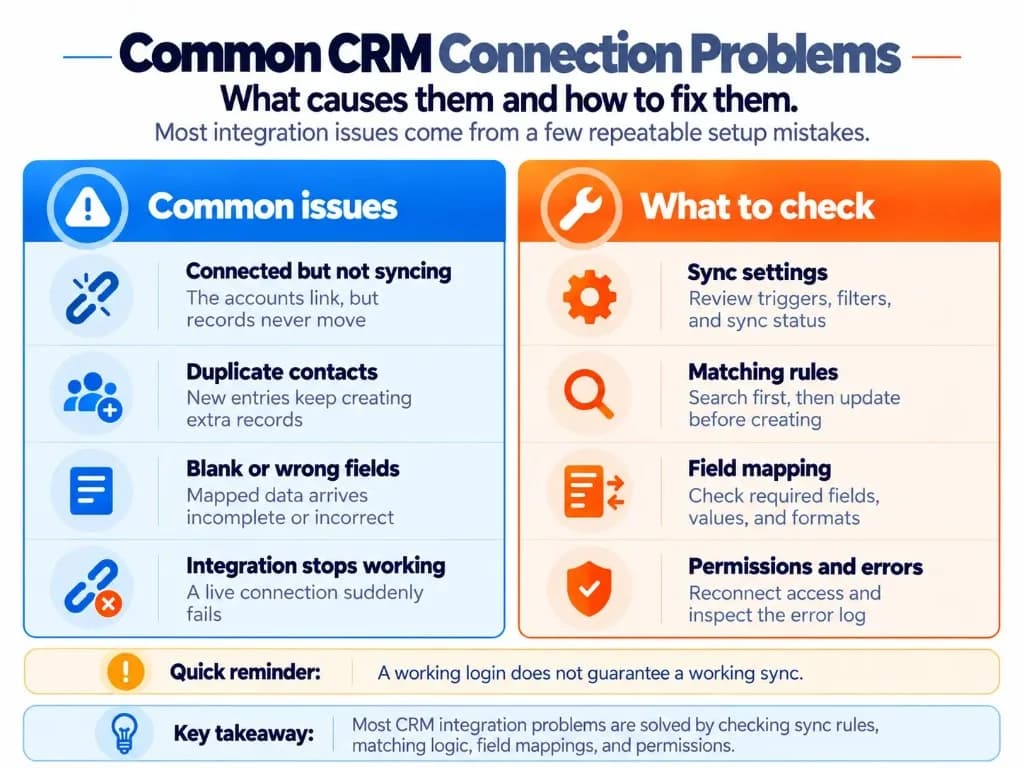
Most CRM connection failures are configuration problems rather than platform outages.
| Problem | Likely cause | What to check |
|---|---|---|
| Connected but not syncing | Authorization succeeded, but the workflow is inactive or filtered | Confirm triggers, filters, and sync status |
| Duplicate contacts | No reliable matching rule before create | Search by email or unique ID first |
| Blank or wrong fields | Incomplete or incorrect field mapping | Review required fields, formats, and value transforms |
| Broken associations | Contacts sync without company or deal mapping | Configure relationship mappings and prerequisites |
| Integration stops working | Expired permissions, plan limits, or API errors | Reconnect access and inspect error logs |
A working login does not guarantee a working sync. After every change, retest both new and existing records.
When sync quality keeps failing because of complex rules or unsupported objects, teams sometimes move from Zapier-style automations to custom API work—or compare relationship tools more broadly in our CMS vs CRM differences and CRM vs CXM guides. Operational CRM day-to-day follow-up still depends on accurate synced records, whether you use native connectors or custom CRM development.
Keep notes and tasks connected to synced events so owners know what changed. Sales automation reminders only help when the underlying contact and deal data remain trustworthy.
Frequently Asked Questions
Will connecting my CRM automatically import existing contacts?
Not always. Some CRM integrations support an initial sync of existing contacts, while event-based tools such as Zapier generally process only new events after activation. Check whether your connector supports historical data imports or backfills, and configure record matching before transferring existing contacts to prevent duplicates.
Can connecting a CRM overwrite my existing customer information?
Yes. A CRM integration can overwrite existing information when two connected systems update the same fields. Configure synchronization direction and data-conflict rules to determine which application controls each field. Test changes in both systems before enabling automatic two-way synchronization.
Can I connect my existing website contact forms to a CRM without replacing them?
Yes, in many cases. If your website form supports a native CRM integration, Zapier, or webhooks, you can send submissions directly into your CRM without rebuilding the form. The available method depends on your form software, and you should test whether new submissions create or update the correct contact records.
Why does my CRM create duplicate contacts after integration?
Duplicate contacts typically occur when the integration cannot reliably match incoming data with existing CRM records. This can happen because matching rules are missing, identifiers differ, or multiple applications create records independently. Configure the integration to search for an existing contact before creating one, using a suitable unique identifier where available—standard advice during CRM implementation go-lives.
Why are contacts syncing but not linking to the correct companies or deals?
Contacts may sync successfully while their relationships with companies or deals remain missing because record associations require separate mapping or configuration. Some integrations also need the related company or deal to exist before creating an association. Check supported relationship mappings and test complete records rather than individual contact fields. CRM vs project management software comparisons show a similar gap when ownership of related objects is unclear.
Will missed leads automatically sync after I reconnect my CRM?
Not necessarily. Some event-based integrations do not automatically replay leads created while the automation was disabled or disconnected. After reconnecting, inspect the source application and integration history, then use a supported resync, backfill, or one-time transfer to recover missing records without creating duplicates.
Can I connect Gmail or Outlook to my CRM?
Yes, many CRM platforms support connections with Gmail, Outlook, or their associated contact services. However, email logging, contact synchronization, and calendar synchronization are separate capabilities. Check which features your CRM supports and whether you need additional permissions or a specific subscription to enable them. Pharmaceutical CRM and Telecom CRM teams should also confirm logging policies before enabling mailbox sync.
Does connecting a CRM cost extra?
CRM integrations can be free or paid, depending on the applications and connection method. Some native integrations are included in existing subscriptions, while automation platforms, premium connectors, or API access may require additional plans. For example, Salesforce and Zoho CRM are premium apps on Zapier, requiring a paid Zapier plan. Budget for monitoring as well as setup—especially when business growth depends on reliable inbound lead capture.